
The Complete Guide
Turning a photo into a cartoon is easier than ever. With AI tools, you can turn your favorite photo into a cartoon in about 30 seconds, without using Photoshop or hiring an artist.
People turn photos into cartoons for many reasons. For example, you can create a fun profile picture, make a special gift, cartoonize your pet, or design a unique image for your website.
However, not every cartoon maker gives good results. Some tools add simple filters that make photos look blurry. Others use AI to create clear cartoon images with better details. Also, while some tools are free to use, others charge for extra styles and features.
In this guide, you’ll learn how to turn a photo into a cartoon using four simple methods. You’ll also discover useful AI tools, follow easy step-by-step instructions, and find tips for getting better results. Finally, we’ll cover photo privacy so you can make informed choices before uploading your pictures online.
What Does It Mean to Turn a Photo Into a Cartoon?
When you cartoonize a photo, a tool takes a realistic image and simplifies it. Colors get flatter, skin gets smoother, and bold outlines often appear around faces and objects. The end result looks hand-drawn instead of photographed.
There are two ways software does this:
- Filter-based tools detect edges, reduce the number of colors, and add outlines. They work fast and keep your photo looking exactly like itself, just stylized.
- AI-based tools analyze what’s in the picture, such as a face, hair, clothing, or a pet, and redraw it in a chosen art style. The results usually look more polished, but they can drift a little from the original.
Popular cartoon styles
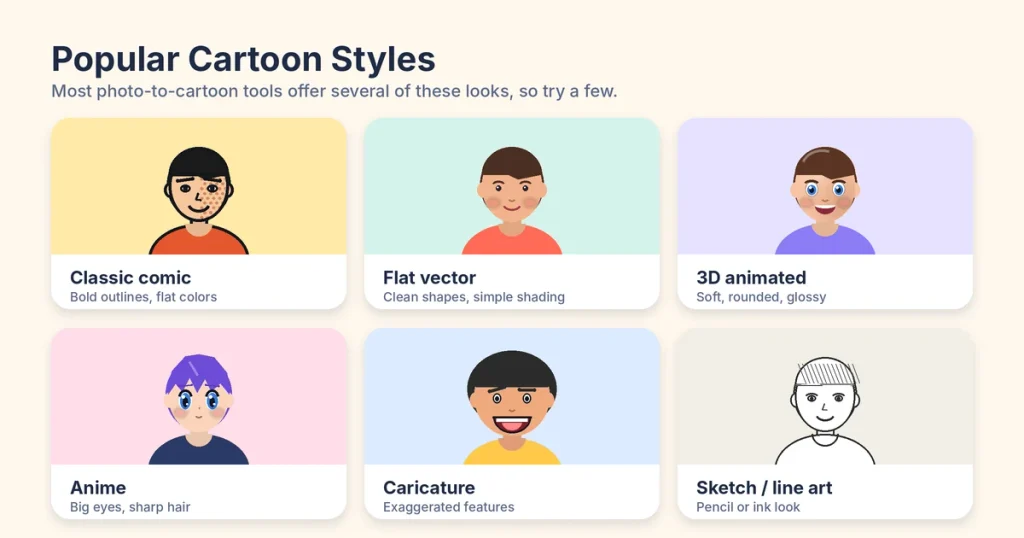
Before you pick a tool, it helps to know the look you want:
- Classic comic or pop art: thick black outlines and bright, flat colors.
- Western cartoon or flat vector: clean shapes and simple shading, great for logos and avatars.
- 3D animated movie style: soft, rounded features with a glossy finish.
- Anime: large expressive eyes and sharp, stylized hair.
- Caricature: exaggerated features for humor, such as a bigger smile or a longer chin.
- Sketch or line art: a pencil or ink drawing without much color.
Most modern apps offer several of these, so you can try a few before you settle on one.
4 Ways to Turn a Photo Into a Cartoon
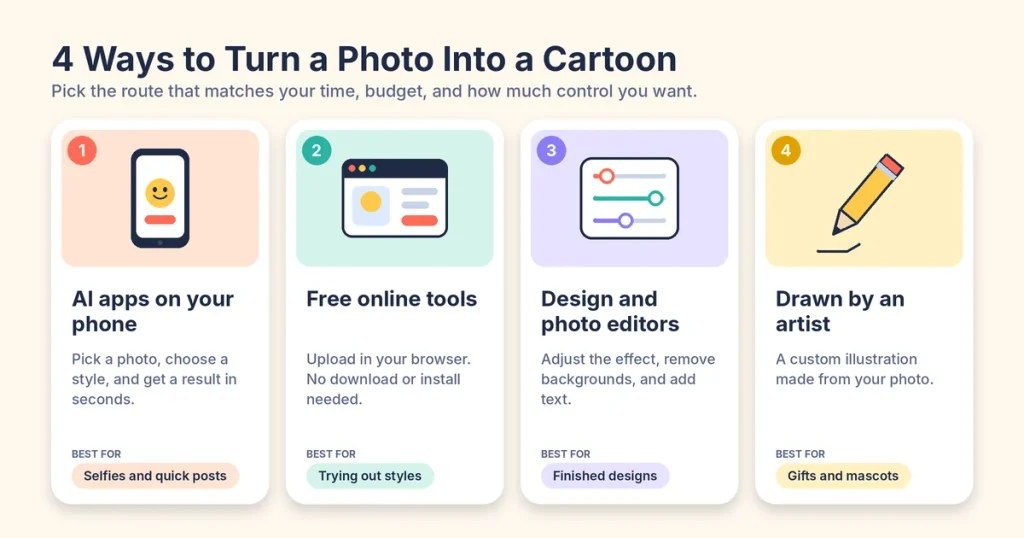
You don’t need to be an artist, but it helps to know your options before you pick one.
1. AI cartoon apps on your phone
Apps for iPhone and Android are the fastest route. You pick a photo from your camera roll, choose a style, and get a result in seconds. They’re ideal for selfies and quick social posts. The downside is that many apps lock their best styles behind a subscription, and some add a watermark to free exports.
2. Free online tools in your browser
Web-based cartoon makers need no download. You upload a photo, click a style, and save the result. They’re a good choice when your phone is low on storage or when you want a bigger screen to compare results. Free plans often cap how many images you can create or limit the download quality.
3. Design and photo editors
Platforms like Canva and traditional editors like Photoshop give you more control. You can adjust the strength of the effect, remove the background, add text, and build the cartoon into a finished design such as a poster or invitation. The learning curve is a bit steeper, but the output is more customizable.
4. Drawing it by hand or hiring an artist
If you want something truly original, a digital illustrator can turn your photo into a custom piece. It costs more and takes longer, but you get a unique result that no filter can match. Many people go this route for wedding gifts, portraits of loved ones, and brand mascots.
Best Tools to Turn a Photo Into a Cartoon Right Now
There’s no single best tool for everyone. The right pick depends on whether you care most about speed, style variety, or editing control. These five are popular, easy to start with, and cover the main use cases. The details below come from each tool’s own page or a recent review as of October 2026, but plans and free limits change often, so confirm before you commit.
| Tool | Works on | Best for | Good to know |
|---|---|---|---|
| Canva | Web, mobile | Turning a cartoon into a finished design | Open Apps and choose “Photo to cartoon.” Free users get a few basic effects; Pro adds more styles and higher-resolution downloads. |
| CapCut Web | Web | Text-guided cartoons you can refine | Upload a photo and describe the style you want. CapCut says exports are free with no watermark, but you sign up for a free account first. |
| Fotor | Web, iOS, Android | Style variety | Offers 54+ cartoon styles, including 3D and anime looks, and also handles pets and landscapes. Its page mentions daily free credits and no watermark. |
| Imglarger | Web | Quick one-off conversions | Basic use needs no sign-up, though customization is limited. |
| PhotoDirector | iOS, Android | Cartoon selfies on your phone | Also includes editing tools such as background changes. Works best with one clear face. |
One honest warning: many “best photo to cartoon app” lists are published by the companies that sell those apps, and each tends to rank its own product first. Even small details vary between sources, such as whether Fotor adds a watermark to free downloads. The simplest fix is to run the same photo through two or three tools and judge the results yourself.
What to check before you choose
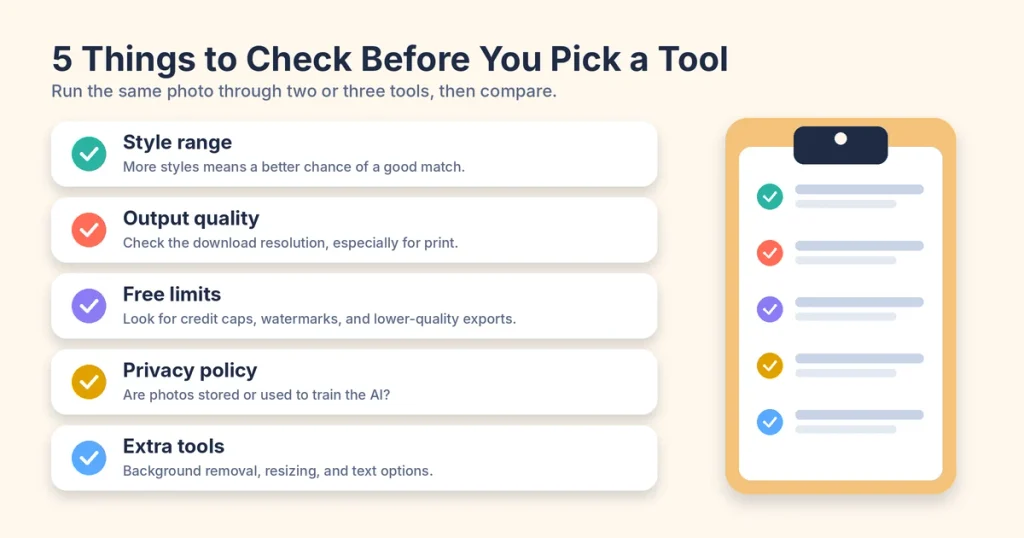
- Style range: more options mean a better chance of finding one that looks like you.
- Output quality: check the download resolution, especially if you plan to print.
- Free limits: look for credit caps, watermarks, and lower-quality free exports.
- Privacy policy: find out whether your photos are stored or used to train the AI.
- Extra tools: background removal, resizing, and text options save you a second app.
How to Turn a Photo Into a Cartoon in 6 Steps
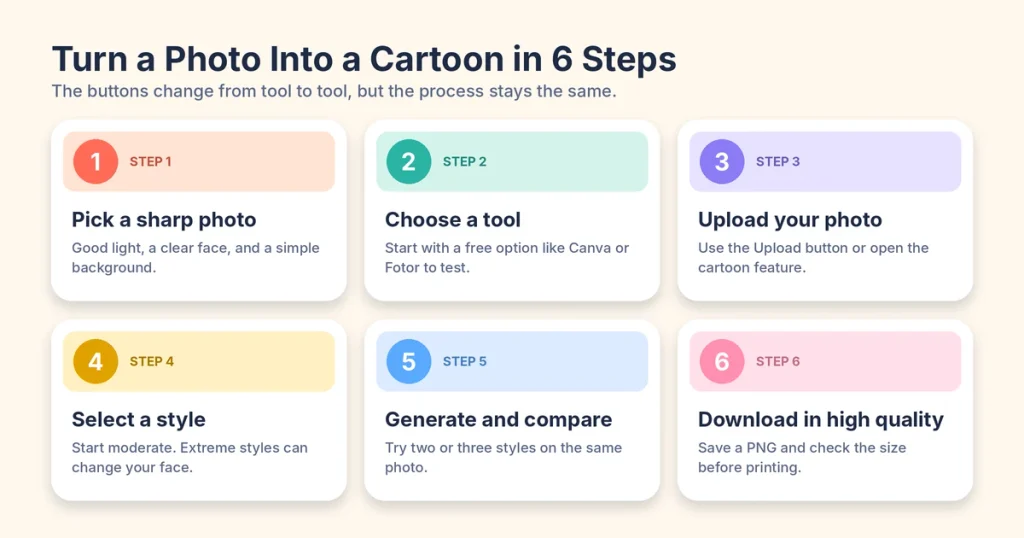
- Pick the right photo. Choose a sharp, well-lit picture where the subject is easy to see. More on this in the next section.
- Choose a tool. If you’re not sure, start with a free option like Canva or Fotor so you can test without paying.
- Upload your photo. Look for a button labeled “Upload,” or open the cartoon feature inside the editor and add your image there.
- Select a style. Start with a moderate style rather than the most extreme one. Heavy effects can change your face more than you expect.
- Generate and compare. Run two or three different styles on the same photo. Small changes in style can make a big difference in how natural the result looks.
- Download in the highest quality available. Save a PNG for the sharpest result. If you plan to print it, check the file dimensions first so it doesn’t come out blurry.
If you want more control, use the extras that many tools include. You can remove the background, adjust the strength of the effect, or add text and stickers before you export. In Canva, for example, you can send the cartoon straight into a new design and keep editing.
How to Choose the Best Photo for a Cartoon
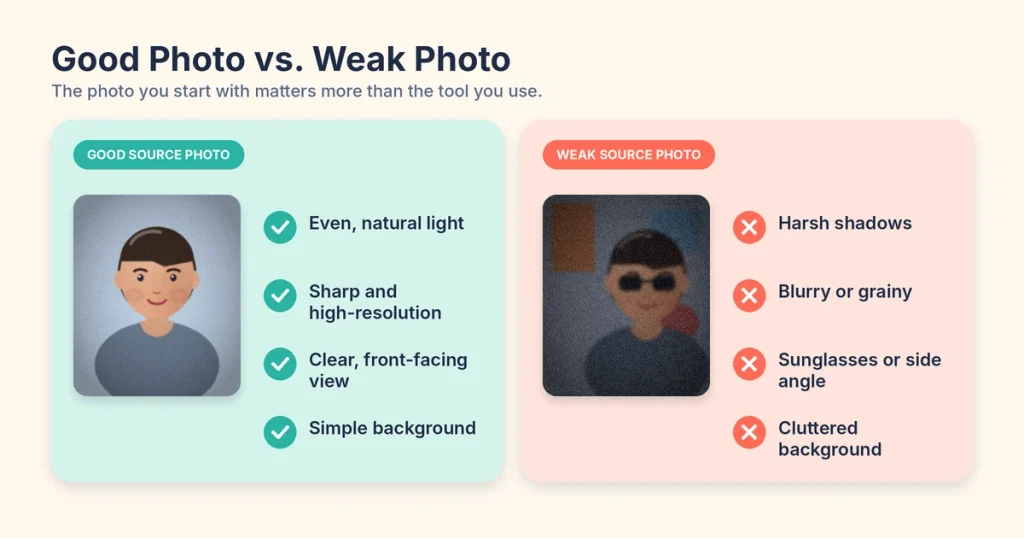
The quality of your original photo plays a big role in the final cartoon. Even the best AI tool may struggle with a blurry or dark image. For better results, follow these simple tips:
- Use good lighting. Choose a photo with soft, natural light. This helps the AI show your facial features clearly.
- Choose a sharp photo. High-quality images usually produce clearer cartoons. Avoid blurry or grainy pictures.
- Keep your face visible. Front-facing photos work well because the AI can see your features more easily. Avoid sunglasses or anything that covers your face.
- Focus on one subject. Selfies and portraits often give the best results. If you use a group photo, make sure every face is clear.
- Pick a simple background. A plain background helps the AI focus on the main subject and reduces unwanted details.
- Avoid heavy filters. Start with a natural photo so the AI can create a cartoon that looks more like you.
What Can You Do With a Cartoon Photo?
A cartoon photo is more than just a fun picture. You can use it for social media, personal projects, gifts, and even business branding.
Here are some popular ways to use your cartoon image:
- Profile pictures and avatars: Create a unique profile picture for Instagram, Discord, gaming accounts, and other online communities.
- Personalized gifts: Turn photos of family members or pets into cartoon portraits for mugs, T-shirts, phone cases, or framed prints.
- Cards and invitations: Add a cartoon portrait to birthday invitations, greeting cards, and other special designs.
- Social media posts: Use cartoon images to create fun memes, story graphics, and eye-catching posts.
- Personal branding: Use the same cartoon portrait on your website, newsletter, and social media profiles to build a recognizable identity.
- Small business designs: Create a cartoon mascot or founder portrait to give your brand a friendly, personal touch.
Before using your cartoon for business purposes, check the tool’s terms of service. Some tools limit commercial use, especially for free accounts. Therefore, make sure you have the right to use the image for your intended purpose.
Common Mistakes to Avoid
Most disappointing results come down to a handful of avoidable errors.
- Starting with a low-quality photo. If the original is small or blurry, the cartoon will be too.
- Using the first result without comparing. Different styles can make the same person look completely different. Try a few.
- Picking an over-the-top style. Extreme effects can make you unrecognizable. If you want it to look like you, choose a gentler style.
- Ignoring free-plan limits. Some tools cap your credits, add watermarks, or lower the download quality. Check this before you spend time on a design.
- Skipping the privacy policy. It only takes a minute to see how a service handles your uploads.
- Printing without checking resolution. A cartoon that looks sharp on your phone can look soft on a poster.
Privacy and Safety: Read This Before You Upload
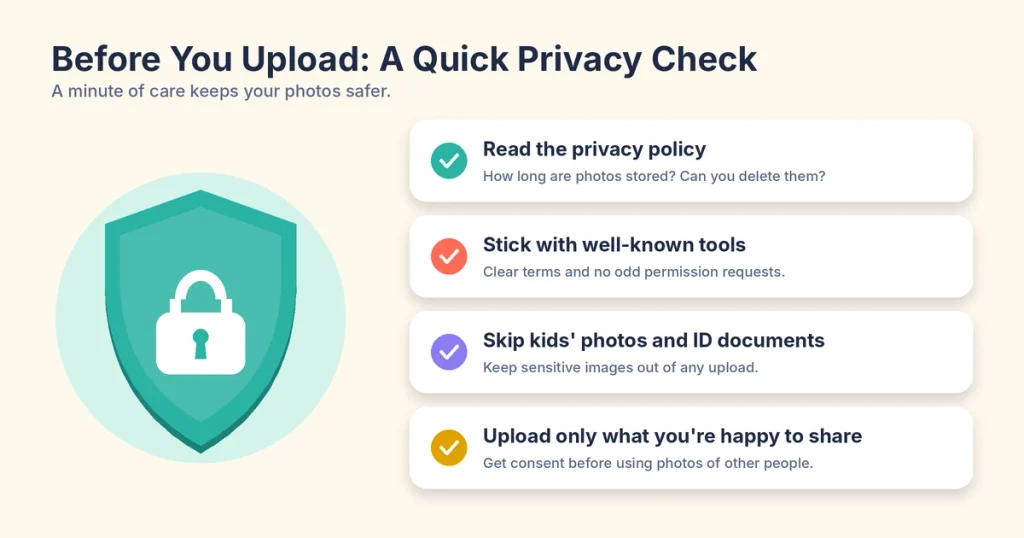
When you upload a photo to a cartoon app, you share your image with that service. Most trusted tools explain how they handle your photos. However, privacy policies differ, and some services may store images or use them to improve their AI models.
Follow these simple tips to protect your privacy:
- Check the privacy policy: Find out how long your photos are stored and whether you can delete them.
- Choose trusted tools: Use services with clear privacy terms. Also, avoid unfamiliar websites that ask for unnecessary permissions.
- Keep sensitive photos private: Avoid uploading children’s photos, identity documents, or other personal images.
- Get permission first: If you want to cartoonize someone else’s photo, ask for their permission before uploading it.
You don’t need to avoid cartoon apps altogether. Instead, choose a tool carefully and understand how it handles your images. That way, you can enjoy creating cartoon pictures while making smarter choices about your privacy.
Frequently Asked Questions
Yes. Many tools offer a free tier, including Canva, Fotor, and CapCut Web. The catch is that free plans usually limit something: the number of images, the number of styles, or the download quality. Try a few and see which free limits you can live with.
There isn’t one best app. Fotor is strong on style variety, Canva is best if you want to build a design around your cartoon, and PhotoDirector is handy on a phone. Test the same photo in two or three and pick the result you like most.
Yes. Apps like PhotoDirector are built for iPhone and Android, and web tools like Canva and Fotor also work in a mobile browser or through their apps.
Why doesn’t my cartoon look like me?
Usually it’s the source photo or the style. Side angles, shadows, sunglasses, and blur make faces harder to reproduce. Try a clear, front-facing photo in good light, and choose a style with less exaggeration.
Yes. Some tools, including Fotor, support pet photos and landscapes as well as portraits. Pets usually look best when the photo is well lit and their markings are easy to see.
That depends on the tool’s terms and on whether you own the rights to the original photo. Check the license for the tool you used before putting a cartoon on products or ads. For anything high-stakes, ask a lawyer, since this is general information, not legal advice.
Final Thoughts
You don’t need design skills or expensive software to turn a photo into a cartoon. With a clear photo and the right AI tool, you can create a cartoon image in just a few minutes.
First, choose a well-lit photo with a clear face. Then, try two or three free cartoon tools using the same image to compare the results. Choose a style that looks good and still feels like you. Before uploading personal photos, check the tool’s privacy policy to understand how your images may be used.
Want a more personal result? You can also choose a custom illustration. Now, pick your favorite photo and try it yourself. You might have your first cartoon ready in just 30 seconds!
About This Article
Written by: Aisha Qureshi
Published: October 23, 2026
Last updated: October 23, 2026
Please Note
Tool features, free limits, and pricing change often. The details in this guide were checked in October 2026, so please confirm current plans on each tool’s website before you decide.
About the Author
Ayesha Qureshi is an SEO content writer and website creator behind AI Power in Life, where she writes practical, easy-to-follow guides on AI tools and productivity. Her goal is simple: help readers get real, useful results without the confusing jargon.